
When we started building multi-cloud support for formae, we knew we had a single shot to get it right. AWS, GCP and Azure each come with their own zoo of resource types, and our code generator had to handle whatever combinations users threw at it.
formae resource schemas are defined in Pkl, Apple’s typed configuration language. Plugins use it to describe their resource types. The formae extract command turns your cloud resources into Pkl code, but there’s a catch: it needs to load the correct provider schemas, and we only know which ones those are at runtime.
The Problem: Pkl Lacks Truly Dynamic Import Functionality
Pkl comes with a powerful module system that includes import* for glob-based imports:
// This works - import all .pkl files from the aws package
local awsModules = import*("@aws/**/*.pkl")
The catch? Pkl resolves all imports before your code even starts running. You can’t concatenate strings to build import paths at runtime — that’s just not how the language works. This is by design: it’s what makes Pkl’s static analysis so reliable. But it puts us in a bind when we’re trying to build an extensible plugin system.
// This does NOT work - you can't build import patterns dynamically
local packages = List("aws", "gcp", "azure")

local allModules = packages.flatMap((pkg) ->
    import*("@" + pkg + "/**/*.pkl")  // ❌ Not valid Pkl
)
We were stuck. We needed code that could work with any mix of providers, each one potentially bringing dozens of resource types to the table.
Our Solution: A Multi-Stage Code Generation Pipeline
The insight came when we realized:
If imports can’t be built dynamically inside Pkl, we can generate the Pkl code itself outside of Pkl.
Here’s how the pipeline shakes out:
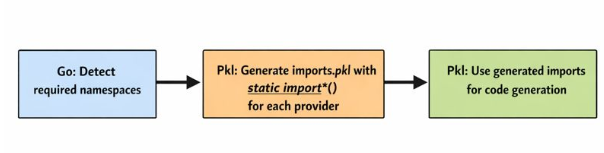
Step 1: Detect Required Namespaces
When you run formae extract, we first scan your resources to see which cloud providers are in play:
// Extract namespaces from the resources being serialized
namespaces := extractNamespaces(data)
for ns := range namespaces {
    resolver.Add(ns, ns, Version) // e.g., "aws", "gcp"
}
Step 2: Generate PklProject with Dependencies
We spin up a PklProject file on the fly, declaring only the dependencies you actually need:
// Generated PklProject
dependencies {
    ["formae"] { uri = "package://pkg.pkl-lang.org/github.com/platform-engineering-labs/pkl.formae@0.75.1" }
    // Only included if you have AWS resources:
    ["aws"] { uri = "package://pkg.pkl-lang.org/github.com/platform-engineering-labs/pkl.aws@0.75.1" }
    // Only included if you have GCP resources:
    ["gcp"] { uri = "package://pkg.pkl-lang.org/github.com/platform-engineering-labs/pkl.gcp@0.75.1" }
}
Step 3: Generate imports.pkl with Static Globs
Here’s where the magic happens. We use Pkl to write Pkl. The ImportsGenerator.pkl reads the PklProject we just created and spits out proper static imports:
/// ImportsGenerator.pkl - reads PklProject and generates import*() calls
import "PklProject"

local schemaPackageNames = PklProject.dependencies.keys.toList()
    .filter((name) -> name != "formae")

output {
    text = new Listing {
        "packages: Mapping<String, Mapping<String, Module>> = new Mapping {"
        for (name in schemaPackageNames) {
            "    [\"@\(name)\"] = new Mapping { ...import*(\"@\(name)/*.pkl\"); ...import*(\"@\(name)/**/*.pkl\") }"
        }
        "}"
    }.join("\n")
}
Out comes:
// imports.pkl (generated)
packages: Mapping<String, Mapping<String, Module>> = new Mapping {
    ["@aws"] = new Mapping { ...import*("@aws/*.pkl"); ...import*("@aws/**/*.pkl") }
    ["@gcp"] = new Mapping { ...import*("@gcp/*.pkl"); ...import*("@gcp/**/*.pkl") }
}
Perfectly valid static imports — but for exactly the providers we need, nothing more.
Step 4: Use the Generated Imports
Now our code generator can walk through every imported module and find the resource types:
import "./imports.pkl"

function GetAllResourceTypes(): Listing<Resource> = new Listing {
    for (_packageName, packageModules in imports.packages) {
        for (modName, moduleValue in packageModules) {
            // Use reflection to find @ResourceHint annotated classes
            for (clazz in reflect.Module(moduleValue).classes) {
                // ... generate code for each resource type
            }
        }
    }
}
The Go Side Of Things
The serializeWithPKL function ties it all together:
// Step 1: Generate PklProject with correct dependencies
err = p.ProjectInit(generatorDir, includes, schemaLocation)

// Step 2: Generate imports.pkl from PklProject dependencies
p.generatePklFile(generatorDir, "ImportsGenerator.pkl", "imports.pkl")

// Step 3: Generate resources.pkl with dynamic imports
p.generatePklFile(generatorDir, "ResourcesGenerator.pkl", "resources.pkl")

// Step 4: Run the main generator with everything in place
evaluator.EvaluateOutputText(ctx, pkl.FileSource("runPklGenerator.pkl"))
Each stage writes a .pkl file that the next stage can import. By the time we run the final generator, all the imports are valid static Pkl code.
Why This Matters for Plugin Contributors
This architecture means anyone can create a formae plugin that adds new cloud providers or resource types. Your plugin just needs to:
- Define resource schemas in Pkl with @ResourceHint annotations
- Publish them as a Pkl package
That’s it. The pipeline will automatically pick up your schemas whenever someone uses resources from your provider. No changes to formae itself are required.
Head over to the Plugin SDK docs if you fancy building your own.